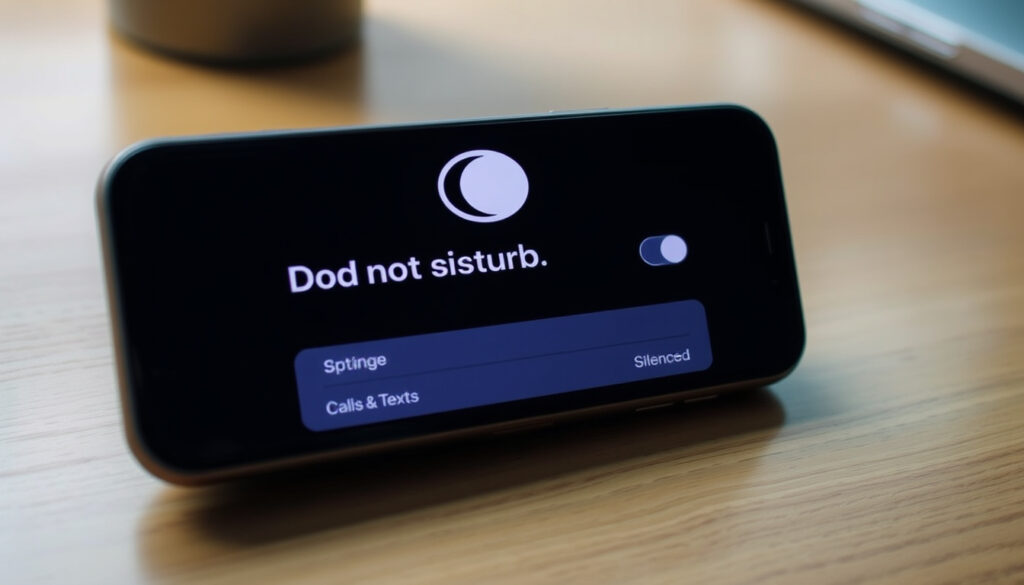
Do Not Disturb iPhone: Turn Off, Calls, Texts Explained
There’s nothing quite like finally finishing a work presentation, only to realize your iPhone has been ruthlessly shielding you from the outside world for the past two hours. Whether you use Do Not Disturb for meetings, sleep, or simply to reclaim your sanity, knowing exactly how to escape its grip—and understanding what it actually does to your calls and notifications—makes all the difference.
Official Toggle Location: Settings > Focus > Do Not Disturb ·
Control Center Access: Swipe down > Tap crescent moon icon ·
Call Behavior: Silences unless allowed
Quick snapshot
- DND silences non-allowed calls and notifications per Apple Support (Apple Support)
- Moon crescent icon appears in status bar when active (Apple Support)
- iOS 15 integrated DND into Focus modes (Apple Support)
- Exact voicemail behavior may vary by carrier (Verizon Support)
- Third-party VoIP app handling beyond FaceTime undocumented (Verizon Support)
- iOS 15 released September 2021, integrating DND into Focus (Apple Support)
- Feature consistent globally with no regional variations noted (Apple Support)
- Scheduled DND can auto-activate; disable schedules to prevent re-enabling (Apple Support)
- Other Focus modes (Personal, Work, Sleep) may override DND separately (iDownloadBlog)
| Setting | Value |
|---|---|
| Primary Toggle | Settings > Focus > Do Not Disturb |
| Quick Access | Control Center crescent moon icon |
| Call Default | Silenced to voicemail |
| Notifications | Blocked unless allowed |
| Visual Cue | Moon icon in status bar |
| Repeated Calls Bypass | 3 minutes |
| Available Focus Modes | Do Not Disturb, Personal, Work, Sleep, Driving |
What Happens on iPhone When Do Not Disturb Is On?
When you activate Do Not Disturb, your iPhone enters a focused state that fundamentally changes how it handles incoming communication. According to Apple’s official documentation, Do Not Disturb is a Focus option in iOS 15 and later that silences calls, alerts, and notifications.
Notifications and Alerts
By default, Do Not Disturb blocks all notifications and alerts from coming through. The screen stays dark when notifications arrive—no banners, no sounds, no vibrations. Verizon’s support documentation confirms that Do Not Disturb lets urgent calls through by default, but everything else gets held back.
Alarms set in the Clock app are explicitly exempted and will still ring during Do Not Disturb. This is the one interruption Apple guarantees will get through.
Visual Indicators
The most visible sign that Do Not Disturb is active is the moon crescent icon appearing in your status bar and on your Lock Screen. Apple Support confirms this visual cue persists until you disable the mode.
The pattern: Do Not Disturb blocks the noise but preserves the essentials—alarms stay functional, and calls from your allowlist can still reach you.
What Happens When Someone Calls While Do Not Disturb Is On?
This is where things get nuanced, and it’s the question most users ask. Asurion’s technical support guide clarifies that Do Not Disturb blocks calls, texts, and app notifications but allows alarms and exceptions like Favorites to come through.
Call Handling
By default, incoming calls from people not on your allowlist get silenced and sent directly to voicemail. However, the exact voicemail behavior may vary depending on your carrier, as noted by Verizon Support.
Repeated Calls Exception
There’s a specific exception built into iOS: repeated calls from the same person within 3 minutes will bypass Do Not Disturb. iDownloadBlog’s troubleshooting guide explains that this is controlled by the “Allow Repeated Calls” toggle, which you can disable if you want complete silence.
If someone is truly trying to reach you in an emergency, the 3-minute repeat call rule gives them a way in. Disable it only if you’re certain you don’t need this safety valve.
Does Do Not Disturb Stop Calls on iPhone?
This is a critical distinction that trips up many users. Do Not Disturb doesn’t block calls outright—it silences them. Asurion distinguishes it from Silent mode, which mutes sound and vibration but still shows visual notifications. With DND, the ringtone doesn’t play, but the call still connects to your carrier’s voicemail system.
Blocking vs Silencing
The implication: even with Do Not Disturb active, your phone is still technically receiving the call. If you’re seeing unexpected calls come through, it’s because exceptions are configured. YouTube tutorial guides demonstrate how to long-press Focus in Control Center and adjust these settings to truly silence everything.
Exceptions and Allow Lists
To block all calls completely, Apple’s community discussions recommend navigating to Settings > Focus > Do Not Disturb > People > Allow Notifications From and deleting everyone from the list. Set “Allow Calls From” to “Allowed People Only” and ensure the allowlist is empty to block all incoming calls.
The catch: VoIP calls through apps like FaceTime follow a separate “Apps” allowlist. To stop these, iDownloadBlog advises removing allowed apps from Settings > Focus > [Mode] > Apps.
How Do I Turn Off Do Not Disturb on iPhone?
Turning off Do Not Disturb is straightforward, but the method depends on your iPhone model and how you prefer to interact with settings.
Control Center Method
For iPhone X and later, swipe down from the top-right corner to open Control Center, then tap the moon crescent icon. Apple’s official steps confirm this is the fastest way to toggle the feature. For older iPhones before X, swipe up from the bottom of the screen instead.
Settings Method
Navigate to Settings > Focus > Do Not Disturb and toggle it off. This method gives you access to more granular controls, including the ability to review and modify your allowlists before disabling the mode.
Control Center is your quickest exit ramp. Settings is where you go when you want to understand why calls were getting through in the first place.
Scheduled Off
One common frustration: Do Not Disturb may auto-activate based on schedules you’ve set. Apple Support notes that you should check Settings > Focus > Do Not Disturb > Set a Schedule if DND keeps re-enabling itself unexpectedly. Disable or adjust any active schedules to regain full control.
What this means: if schedules are active, manually turning off DND won’t stick until the schedule window closes or you delete the schedule entirely.
Can Someone Tell If My iPhone Is on Do Not Disturb?
The short answer is no—callers receive no direct notification that you’ve enabled Do Not Disturb. However, there are subtle cues they might notice.
Caller Indicators
When you enable “Share Focus Status” in your Focus settings, apps like iMessage will display a notice to the person messaging you that you have Do Not Disturb active. iDownloadBlog notes this feature is opt-in and doesn’t notify callers through the Phone app itself.
Text Responses
If someone texts you while DND is active, they won’t know unless you have Focus status sharing enabled. The message arrives silently on your end, and they receive no automated response or delivery failure.
Even with DND on, calls from numbers on your Favorites list or within your allowlist will still ring normally. The caller has no way to know you have DND enabled—they’ll think it’s a normal connected call. For more information on comparing mobile plans in NZ, check out aucklandreview.org.
The trade-off: DND offers plausible deniability. Callers simply assume you’re unavailable, with no way to distinguish “phone is off” from “DND is on.”
How to Fully Silence Calls During Do Not Disturb
Users who still receive calls despite DND being active often have allowlist exceptions configured. Here’s how to achieve complete silence:
- Open Settings > Focus > Do Not Disturb
- Tap People, then Allow Notifications From
- Delete all entries from your allowlist
- Return and tap Calls From > select “Allowed People Only” (with no one added)
- Toggle off “Allow Repeated Calls”
- Go to Apps tab and remove FaceTime and any VoIP apps from the allowed list
According to iDownloadBlog, this configuration ensures no calls break through unless they’re from an exception you’ve explicitly added back.
Long-press the Focus icon in Control Center (the three dots) to quickly access the Focus settings menu without opening Settings. This is where you can verify your current allowlist is actually empty.
What Experts Say
“Do Not Disturb is a Focus option in iOS 15, iPadOS 15, and later that silences calls, alerts, and notifications.”
— Apple Support (Official Documentation)
“That’s where Do Not Disturb comes in. This feature silences unwanted notifications while still allowing important alerts—like alarms or calls from your Favorites list—to come through.”
— Asurion (Tech Support Publisher)
“To stop calls during Focus/Do Not Disturb, remove allowed people from Settings > Focus > [Mode] > People.”
— iDownloadBlog (Apple-focused Tutorial Site)
Confirmed vs Unconfirmed
Confirmed
- DND silences non-allowed calls and notifications (Apple Support)
- Moon icon appears in status bar when active (Apple Support)
- iOS 15 integrated DND into Focus modes (Apple Support)
- Repeated calls bypass DND within 3 minutes (iDownloadBlog)
- Allowlist controls which calls ring (Apple Discussions)
- Silent mode differs from DND—mutes sound but shows visuals (Asurion)
Unconfirmed
- Exact voicemail behavior varies by carrier (needs verification)
- Third-party app notification handling beyond FaceTime
- Regional carrier-specific DND behaviors
Summary
Do Not Disturb on iPhone is a powerful tool for reclaiming your attention, but it’s not an absolute wall. Alarms always work, calls from your Favorites still ring, and repeated calls within 3 minutes will always break through unless you specifically disable those features. The most common reason users think DND isn’t working: their allowlists are full of contacts they forgot they’d added. Emptying those lists and disabling “Allow Repeated Calls” gives you the complete silence most people expect from the feature. For anyone who needs to disappear completely—during presentations, deep work sessions, or while sleeping—understanding these exception layers makes all the difference between a quiet phone and one that keeps buzzing despite DND being on.
Related reading: How to Fix Phone Microphone – iPhone and Android Solutions
Do Not Disturb pairs perfectly with other iOS 18 Focus modes guide that let you silence notifications selectively during work or sleep.
Frequently asked questions
Does Do Not Disturb affect alarms on iPhone?
No. Alarms set in the Clock app will still ring normally even when Do Not Disturb is active. This is an intentional design by Apple to ensure you don’t miss important wake-up calls or time-sensitive reminders.
What is the Do Not Disturb message on iPhone?
When you enable “Share Focus Status,” iMessage and other apps can display a notice to contacts that you’ve silenced notifications. This is an opt-in feature found in Settings > Focus that provides transparency without revealing exactly which Focus mode you’re using.
Why is Do Not Disturb not working on my iPhone?
The most likely reasons: scheduled activation is turning it back on, your allowlist contains contacts who can still reach you, or “Allow Repeated Calls” is enabled. Check Settings > Focus > Do Not Disturb and review your People and Apps exceptions.
Does Do Not Disturb send auto-replies to texts?
No, Do Not Disturb doesn’t automatically reply to texts. However, if you enable Focus status sharing, contacts using iMessage may see that you’ve silenced notifications. This is informational, not an automated response.
How to allow specific calls during Do Not Disturb?
Go to Settings > Focus > Do Not Disturb > People > Allow Notifications From and add specific contacts. You can also set “Allow Calls From” to favorites only, or choose specific groups from your contacts.
Does Do Not Disturb drain iPhone battery?
Do Not Disturb itself has minimal battery impact since it’s a settings configuration rather than an active background process. However, any active screen-on time to configure settings will use battery normally.
What happens to repeated calls in Do Not Disturb?
Calls from the same number within 3 minutes of each other will bypass Do Not Disturb. This is an Apple-designed feature for emergencies. To disable it, go to Settings > Focus > Do Not Disturb and toggle off “Allow Repeated Calls.”
More related posts
 Is Mounjaro Available in New Zealand? 2026 Cost & Alternatives
 Main Street Cafe Invercargill: Menu, Hours, Reviews Guide
 How Do I Get Started Playing Padel? Beginner Guide
 Tasman Holiday Park Miranda: Prices, Reviews & Amenities
 How to Fix Phone Microphone – iPhone and Android Solutions
 Love Island USA Season 7 – Winners, Cast and Finale Results
 Biggest Tsunami Ever Recorded: Height, Death Toll & Facts
 Final Destination Bloodlines Cast: Full List & Characters