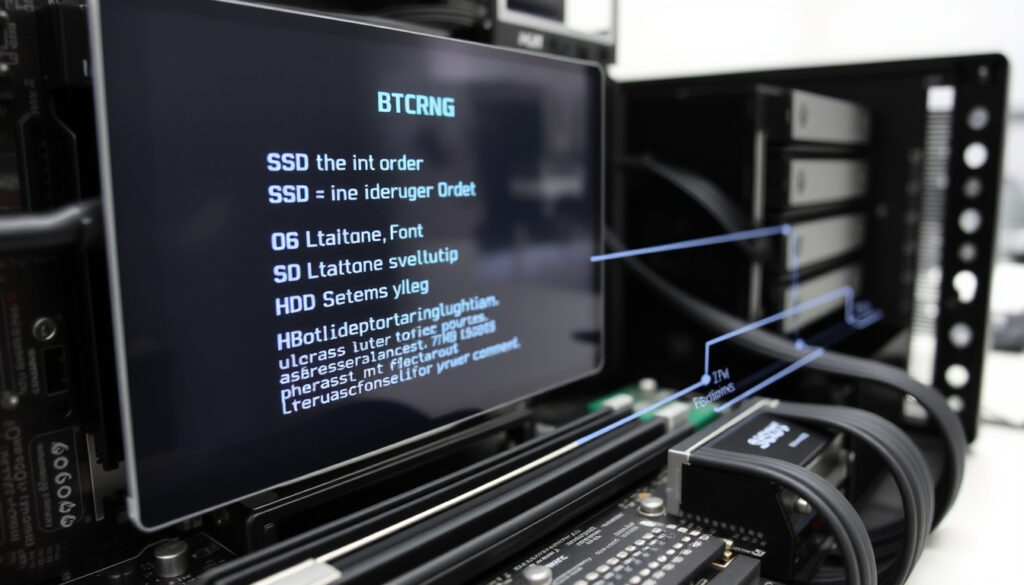
What Is BIOS Boot Order? How to Set It Correctly (Windows 10/11)
If you’ve ever mashed keys at startup hoping to see a menu, you’ve already bumped into the BIOS boot order. That hidden list decides which drive your PC asks first for an operating system — and getting it wrong can leave you staring at a black screen or a boot loop.
Number of boot stages in a typical PC: 4 · Default first device in most consumer BIOS configurations: Hard Drive or SSD · Key to enter BIOS (most common): F2, F10, F12, Del
Quick snapshot
- Boot order is the sequence of devices the PC checks for an OS, and the first bootable device starts the computer (Lenovo Support documentation).
- Changing the boot order allows booting from a USB drive or DVD (Dell Community forum).
- Windows 11 requires UEFI mode and Secure Boot (Lenovo CDRT technical docs).
- The exact BIOS access key can vary between motherboard models from the same brand (HP Support Community thread).
- Whether you can change boot order without entering BIOS depends on whether a one-time boot menu is available (YouTube demonstration by a tech channel).
- The impact of boot order on boot times for specific SSDs is not universally documented (Dell Community troubleshooting post).
- Stage 1: CPU executes code in ROM (BIOS/UEFI) (Lenovo Support documentation).
- Stage 2: Power-On Self-Test (POST) checks hardware (Lenovo CDRT technical docs).
- Stage 3: BIOS finds a bootable device and loads the bootloader (Dell Community forum).
- Stage 4: Bootloader loads the OS kernel (HP Support Community thread).
- UEFI is rapidly replacing legacy BIOS — over 90% of new PCs ship with UEFI firmware (Lenovo CDRT technical docs).
- Expect more manufacturers to hide legacy boot options in the future (HP Support Community thread).
- Windows 11’s strict UEFI requirement means users on older hardware must check compatibility before upgrading (YouTube guide from a tech educator).
The boot sequence is simply a priority list. Get it wrong, and your PC will skip past your OS drive without loading anything.
| Label | Value |
|---|---|
| Official name | Boot Order / Boot Priority |
| Storage location | CMOS memory on motherboard |
| Key to enter BIOS (most common) | F2, F10, F12, Del |
| Key to open one-time boot menu (most common) | F12 |
| Default order (most new PCs) | SSD/HDD, CD/DVD, USB |
| Number of devices typically listed | 3 to 8 |
The table shows the core facts at a glance. The key takeaway: the default order is safe for daily use, but you’ll need to change it for installations or recovery.
What Should My BIOS Boot Order Be?
Correct boot order for Windows 10 and Windows 11
- For a fresh OS installation, set USB or DVD as the first device (Lenovo Support documentation).
- For normal operation, move your SSD or HDD containing Windows to the top of the list (Dell Community forum).
- Dell systems often default to hard drive first; USB boot requires pressing F12 at startup (Dell Community troubleshooting post).
- HP systems manage UEFI boot order from the Advanced tab in BIOS (HP Support Community thread).
- Lenovo systems allow boot order changes in the Startup menu of the UEFI/BIOS setup (Lenovo Support documentation).
Correct boot order for Dell computers
Dell documentation recommends Boot List Option set to UEFI when using an NVMe drive (Dell Community troubleshooting post). The traditional legacy order places the hard drive first, optical drive second, removable media third, and other devices fourth (Dell Community forum).
Correct boot order for HP computers
To enter BIOS on HP PCs, press F10 while the screen is blank during startup (HP Support Community thread). Some models use F2 or F6 instead. Within the BIOS, navigate to the Advanced tab to reorder UEFI boot entries.
Correct boot order for Lenovo computers
Lenovo ThinkPads present a Boot menu with a Boot Priority Order list that includes Windows Boot Manager, USB HDD, USB CD, NVMe0, and PXE Boot (Lenovo CDRT technical docs). Changes are saved by pressing F10 at the exit prompt (Lenovo Support documentation).
A mismatched boot order is the #1 cause of “No bootable device” errors after cloning a drive or installing a new SSD. Setting the correct device first saves you from repeated failed boots.
How to Check if Boot Order Is Correct?
Steps to verify boot order in BIOS
Enter BIOS by pressing the manufacturer-specific key (F2, F10, F12, or Del) during startup (YouTube demonstration by a tech channel). Navigate to the Boot or Startup tab and look for the Boot Order or Boot Priority list (Lenovo Support documentation).
- If the PC boots directly to Windows, the current order is likely correct for normal operation.
- If you see “No bootable device,” either the OS drive isn’t first or the drive isn’t detected (Dell Community forum).
Signs of a wrong boot order
- PC boots to a black screen or an “Operating System not found” message.
- The system enters a boot loop, trying multiple devices in sequence (HP Support Community thread).
- After attaching a USB drive, the PC boots from the USB instead of the hard drive — a clear sign the USB is above the internal drive in the order.
A correct boot order alone won’t fix a missing or corrupted bootloader. If Windows doesn’t start after setting the SSD first, use the Windows recovery environment to rebuild the BCD.
Is It Better to Boot with UEFI or Legacy?
Three key differences separate UEFI from legacy BIOS boot mode. One stands out for anyone running Windows 11.
| Feature | UEFI Boot | Legacy (CSM) Boot |
|---|---|---|
| Supported disk size | Up to 9.4 ZB (GPT partitioning) | Up to 2 TB (MBR partitioning) |
| Secure Boot | Supported (Lenovo CDRT technical docs) | Not supported |
| Windows 11 requirement | Mandatory (UEFI + Secure Boot) | Not compatible |
| Boot speed | Faster due to parallel initialization (YouTube guide from a tech educator) | Slower (sequential BIOS interrupts) |
| Hardware support | Native NVMe, USB 3.0 boot | Requires legacy driver emulation |
Upsides
- Supports Secure Boot, reducing rootkit infections.
- Faster boot times on modern hardware.
- Required for Windows 11.
- Handles disks larger than 2 TB.
Downsides
- Not compatible with older Windows versions (e.g., Windows 7).
- Switching from Legacy to UEFI usually requires OS reinstallation.
- Some graphics cards and expansion cards have poor UEFI GOP support.
The implication: If your hardware supports UEFI (most PCs from 2012 onward), use it. The trade-off is a one-time reinstall if you’re currently running in Legacy mode, but the security and speed gains are worth it.
What Are the 4 Stages of Boot?
Stage 1: BIOS/UEFI initialization
The CPU immediately begins executing code from the firmware ROM (BIOS or UEFI). This code initializes the motherboard chipset and memory controller (Lenovo Support documentation).
Stage 2: Power-On Self-Test (POST)
The BIOS runs a series of checks on critical hardware — CPU, RAM, storage, and graphics — to confirm they are functional (Lenovo CDRT technical docs). A single beep usually means all is well.
Stage 3: Bootloader loading
After POST, the firmware scans the boot order list. The first device containing a valid boot sector launches its bootloader — Windows Boot Manager, GRUB, or similar (Dell Community forum).
Stage 4: Operating system kernel loading
The bootloader hands control to the OS kernel, which loads drivers and starts system services (HP Support Community thread).
A failure at stage 2 (POST) typically produces a beep code or a blank screen that never reaches the boot order check. Reseat RAM and GPU first; the boot order is irrelevant if POST doesn’t complete.
How to Change Boot Order in BIOS on Windows 11?
Windows 11 users can access BIOS either through a startup key press or via the Windows Recovery Environment. Both methods are straightforward.
Method 1: Using a BIOS key at startup
- Restart your PC. As the manufacturer logo appears, press the BIOS key: F2 (Dell, many Lenovo), F10 (HP), or Del (custom motherboards) (Dell Community troubleshooting post; HP Support Community thread).
- Navigate to the Boot or Startup tab using arrow keys.
- Select the desired device (e.g., “Windows Boot Manager” or “SSD”). Press + or – to move it up or down (Lenovo Support documentation).
- Press F10 to save and exit. Confirm with “Yes.”
Method 2: Using Windows Advanced startup
- Open Windows 11 Settings → System → Recovery → Click “Restart now” under Advanced startup (YouTube guide from a tech educator).
- On the blue screen, select Troubleshoot → Advanced options → UEFI Firmware Settings → Restart.
- The BIOS/UEFI menu opens, where you adjust the boot order as described above.
Using the one-time boot menu (F12 on Dell, Lenovo; F9 on HP) is faster for temporary boots from USB. Only permanent changes require editing the saved boot order inside BIOS.
Clarity section
Confirmed facts
- Boot order is a fundamental BIOS/UEFI feature (Lenovo Support documentation).
- Changing boot order allows booting from USB or DVD (Dell Community forum).
- Many PCs use either UEFI or Legacy mode (Lenovo CDRT technical docs).
What’s unclear
- The exact key to enter BIOS varies by motherboard model, even within the same brand (HP Support Community thread).
- Whether a user can change boot order without entering BIOS depends on the availability of a one-time boot menu (YouTube demonstration by a tech channel).
- The impact of boot order on boot times for specific SSDs is not universally documented (Dell Community troubleshooting post).
“The boot priority order can be changed in the UEFI/BIOS setup utility and saved with F10.”
— Lenovo Support documentation (official support page)
“If a machine waits while checking other devices, moving the hard drive to number 1 in boot order can reduce boot delay.”
— Dell Community user recommendation (support forum)
“For a new OS installation, set USB or DVD as the first boot device; after Windows is installed, put the SSD or HDD containing Windows first.”
— HP Support Community guidance (official support thread)
The pattern across all three OEMs is consistent: the boot sequence is a simple priority list, but the keys and menu labels differ. For a typical Windows 10 or 11 user on a Dell, HP, or Lenovo machine, the correct boot order is either the default system drive first or a temporary USB override for installations. Getting it wrong produces a “No bootable device” error; fixing it takes 30 seconds inside BIOS.
For the home user managing a single PC, the choice is clear: stick with UEFI, keep your system drive at the top, and use the one-time boot menu when you need to boot from a USB stick. That’s all you need to avoid the black screen.
Frequently asked questions
Can a wrong boot order damage my computer?
No. A wrong boot order simply prevents the OS from loading. It won’t damage hardware or software. You can safely change the order back at any time.
How do I change the boot order if I can’t get into Windows?
Restart the PC and press the BIOS key (F2, F10, F12, or Del) repeatedly as soon as the logo appears. If Windows starts, you can also use Advanced startup in the Settings app to reach UEFI firmware settings.
Does the boot order affect how fast my PC starts?
Yes, but only slightly. If a non-bootable device (like an empty USB drive) is listed first, the BIOS will spend a few seconds checking it before moving to the next. Moving your system drive to the top eliminates that delay.
What is the default boot order for a Dell OptiPlex?
Dell OptiPlex systems typically ship with the internal hard drive first, followed by the optical drive, then USB. Check Dell’s support site for your specific model.
How do I set my USB to boot first on an HP laptop?
Press F10 at startup to enter BIOS, go to the Advanced tab, locate UEFI Boot Order, and move your USB drive to the top. Press F10 to save and exit.
Why does my PC keep booting to the BIOS menu?
This often happens when the BIOS cannot find a bootable device. Check that your hard drive or SSD is properly connected and that Windows Boot Manager appears in the boot priority list.
Is it safe to change the boot order on a work computer?
Yes, but you may need IT permission. Changing the boot order itself won’t break anything, but booting from unauthorized media could violate security policies. Always save the original order before making changes.
What should I do if my PC skips the boot order and goes straight to a blue screen?
A blue screen (BSOD) after POST indicates an OS or driver issue, not a boot order problem. Boot from a Windows recovery USB and run startup repair.
More related posts
 The Farmers Son Menu – Prices and Seasonal Dishes Hudson NY
 How to Post on Instagram from Desktop: Step-by-Step Guide
 Two by Two Religion: What the BBC 2025 Investigation Found
 NZ vs South Africa Rugby: Records, TV & Biggest Defeats
 How to Season a Cast Iron Pan: Lodge & Serious Eats Guide
 Learn Spanish Online for Beginners: Best Apps, Sites & Tips
 Oral-B Pro 800 Review: Pressure Sensor & Battery vs Pro 700/3000
 What Is Climate Change? Definition, Causes and Effects