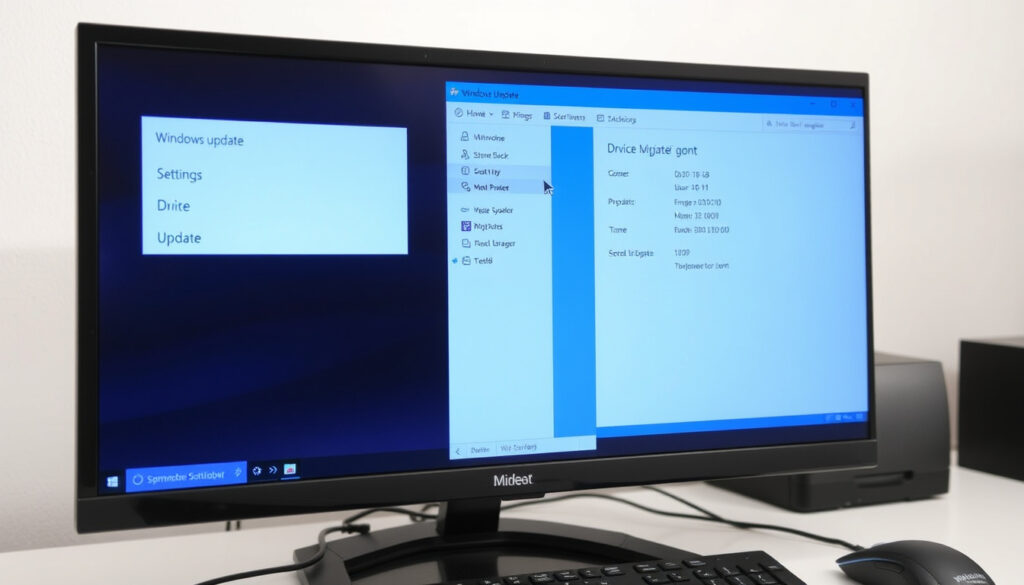
How to Update Drivers Using Windows Update & Device Manager
There’s a good chance your PC is running drivers that are months or even years old — and you might not even realize it. Keeping them up to date isn’t just about chasing the latest features; it can fix performance issues, resolve hardware conflicts, and patch security vulnerabilities. This guide walks through the two official Microsoft-supported paths — Windows Update and Device Manager — so you can decide which method fits your needs.
Windows 11 latest version: 23H2 ·
Optional driver updates location: Windows Update ·
Device Manager role: Manual driver selection
Quick snapshot
- Windows Update automatically delivers recommended and updated hardware drivers for Windows 11 (Microsoft Support)
- Device Manager lets you update drivers per hardware device by right-clicking and selecting “Update driver” (Microsoft Support)
- Microsoft recommends visiting the PC manufacturer’s website for the latest audio drivers when Windows Update doesn’t have them (Microsoft Support)
- Whether third-party driver updaters are safe for all systems (Microsoft Support)
- Whether the ElevenForum method to disable driver inclusion with Windows Updates works across all Windows 11 builds (ElevenForum)
- Microsoft’s Device Manager driver update article last updated March 2026 (Microsoft Support)
- Microsoft’s automatic driver update article last updated June 2026 (Microsoft Support)
- Microsoft’s Windows Update Assistant can manually install the latest feature update on compatible PCs (Microsoft Support)
- Future Windows 11 updates may expand the range of drivers delivered automatically via Windows Update (Microsoft Support)
These six facts capture the key details behind driver update options in Windows:
| Detail | Value |
|---|---|
| Windows 11 release year | 2021 |
| Default driver update source | Windows Update |
| Manual driver update tool | Device Manager |
| Microsoft’s guidance for audio drivers | Visit PC manufacturer’s website |
| Windows Update Assistant function | Install latest feature update manually |
| Driver update via Device Manager | Right-click device → Update driver → Search automatically |
How do I update all my drivers?
Using Windows Update
- Open Settings → Windows Update → Check for updates. Windows automatically scans for available driver updates from Microsoft’s catalog (Microsoft Support on automatic driver updates).
- Optional driver updates appear under “Advanced options” in Windows 11 (Microsoft Learn Q&A).
- This method covers critical and recommended drivers, but may not include the latest specialized drivers from hardware makers.
Bottom line: Windows Update is the easiest, safest route for most drivers. It won’t get you every bleeding-edge version, but it covers security and stability updates reliably.
Using Device Manager
- Right-click the Start button and select Device Manager.
- Expand a category (e.g., “Display adapters”), right-click the device, and choose “Update driver”.
- Select “Search automatically for updated driver software”. Windows will look for a newer driver locally and on Windows Update (Microsoft Support on Device Manager).
Using manufacturer software
- Hardware makers such as NVIDIA, AMD, and Intel provide their own tools: NVIDIA GeForce Experience, AMD Adrenalin, and Intel Driver & Support Assistant.
- These tools often detect the exact hardware model and offer the latest game-ready or productivity drivers.
- Microsoft itself recommends visiting the PC manufacturer’s website for audio drivers when Windows Update doesn’t have them (Microsoft Support on audio drivers).
Windows Update gives you convenience and safety; manufacturer tools give you the most current drivers. Pick based on whether you need stability (Windows Update) or maximum performance for specific hardware (OEM tools).
How do I update drivers using Device Manager in Windows?
Step-by-step Device Manager update
- Press Win + X and select Device Manager.
- Double-click a category to expand it (e.g., “Network adapters”).
- Right-click the device and choose Update driver.
- Select Search automatically for updated driver software.
Windows will search your computer and the web for a newer driver. If found, it installs automatically. If not, you’ll see “The best drivers for your device are already installed.” (Microsoft Support)
How to locate the correct driver
- If automatic search fails, you can browse your computer for driver software — point it to a folder where you’ve downloaded a driver from the manufacturer’s site.
- Another option: let me pick from a list of available drivers on my computer — useful when you have multiple compatible drivers.
Bottom line: Device Manager is the go-to tool when a specific device isn’t working. It’s manual but gives you full control.
How do I check if all my drivers are up to date?
Checking via Windows Update
- Go to Settings → Windows Update → Check for updates.
- Any pending driver updates will appear either under “Optional updates” or be installed automatically.
- To view optional driver updates, click “Advanced options” and scroll to “Optional updates” (Microsoft Learn Q&A).
Checking via Device Manager
- Open Device Manager, right-click a device, and select Properties.
- Go to the Driver tab to see the driver version, date, and provider.
- Compare those numbers with the latest version listed on the manufacturer’s support site.
Using DirectX Diagnostic Tool
- Press Win + R, type
dxdiag, and press Enter. - The tool shows system information, display driver details, and sound driver information. It’s a quick way to get an overview without diving into Device Manager.
The implication: there’s no single “driver health dashboard” in Windows — you’ll need to check individual devices or rely on Windows Update’s aggregated status.
How do I manually update a driver?
Downloading from manufacturer website
- Identify your exact hardware model (e.g., GPU, network card) via Device Manager or system information.
- Go to the manufacturer’s official support page — NVIDIA, AMD, Intel, Realtek, etc. — and download the latest driver for your Windows version.
- Always download from official sites; third-party driver sites may bundle unwanted software or outdated versions.
Installing via Device Manager
- Open Device Manager, right-click the device, and choose Update driver.
- Select Browse my computer for drivers.
- Point to the folder where you saved the downloaded driver (extract it first if it’s a ZIP file).
- Click Next and follow the installation prompts.
If the new driver conflicts with the old one, Microsoft recommends uninstalling the old driver first via Device Manager (right-click → Uninstall device, check “Delete the driver software for this device”) before installing the new one (Microsoft Support on troubleshooting).
“Using Device Manager to update drivers is the traditional method, but it can find only what Windows Update offers or what you’ve manually downloaded.”
— Leo Notenboom, AskLeo
Does my PC automatically update drivers?
Windows Update automatic driver delivery
- By default, Windows Update delivers driver updates for critical hardware components (graphics, network, storage, etc.) automatically as part of monthly quality updates (Microsoft Support).
- Optional driver updates — for devices like printers or older peripherals — are not installed automatically; you must manually check “Optional updates” in Windows Update.
How to enable or disable automatic driver updates
- In Windows 11, go to Settings → Windows Update → Advanced options and toggle “Get the latest updates as soon as they’re available” — this can include driver updates.
- To turn off automatic driver updates, advanced users can modify group policies or use the “Show or hide updates” troubleshooter from Microsoft.
- Some power users disable driver inclusion via Windows Update to avoid compatibility issues — a method documented by community sources like ElevenForum (ElevenForum).
Bottom line: Yes, your PC automatically gets important driver updates via Windows Update, but you may need to manually trigger optional updates or use Device Manager for specific hardware.
“Windows Update is the recommended method for the vast majority of users — it’s safe, automatic, and covers the drivers that matter most.”
— Microsoft Support article on automatic hardware drivers
Step-by-step driver update summary
Windows Update method
- Open Settings → Windows Update.
- Click “Check for updates” and wait for scanning.
- If optional driver updates are available, go to Advanced options → Optional updates → install.
Device Manager method
- Press Win + X → Device Manager.
- Expand the hardware category.
- Right-click the device → Update driver.
- Choose “Search automatically” or “Browse my computer”.
Manual download method
- Find the exact hardware model.
- Download the driver from the official manufacturer site.
- Install via Device Manager or run the installer directly.
Clarity check: What’s confirmed vs what’s unclear
Confirmed facts
- Windows Update can deliver driver updates automatically for critical devices.
- Device Manager allows manual driver updates per device.
- Microsoft recommends using Windows Update as the primary driver update path.
What’s unclear
- Third-party driver updater safety remains unverified by Microsoft.
- Whether the ElevenForum method to disable driver inclusion works across all Windows 11 builds.
- How often manufacturers update drivers beyond what Windows Update delivers.
For the average Windows user, sticking with Windows Update is the safest bet — it’s automatic, vetted by Microsoft, and covers the vast majority of driver needs. If you’re troubleshooting a specific hardware issue or chasing maximum gaming performance, grabbing the driver directly from the manufacturer’s site via Device Manager is often the right call. The trade-off is clear: convenience versus control. Choose based on what your PC actually needs.
youtube.com, techcommunity.microsoft.com, techcommunity.microsoft.com, learn.microsoft.com, youtube.com, youtube.com, support.microsoft.com
Frequently asked questions
Why should I update drivers?
Driver updates fix bugs, improve performance, add new features, and patch security vulnerabilities. Keeping them current ensures hardware works correctly with the latest Windows updates.
What happens if I don’t update drivers?
Outdated drivers can cause system instability, hardware not working correctly, reduced performance, and security risks. In some cases, Windows may fail to detect new peripherals.
Can outdated drivers slow down my PC?
Yes. Outdated graphics, storage, or network drivers can slow down gaming, file transfers, and internet speeds. Updating them often restores performance.
Is it safe to use Windows Update for drivers?
Yes. Windows Update delivers drivers that have passed Microsoft’s compatibility testing. It is the safest method for most users (Microsoft Support).
How often should I update drivers?
For most users, checking once a month via Windows Update is sufficient. If you rely on specific hardware (e.g., a graphics card for gaming), check for manufacturer updates every few months.
Do I need to update drivers for every hardware device?
Not necessarily. Core devices (graphics, network, chipset, storage) benefit most from updates. Older peripherals like mice or keyboards rarely need new drivers.
How do I roll back a driver update?
Open Device Manager, right-click the device → Properties → Driver tab → Roll Back Driver. This restores the previous driver if the new one causes issues (Microsoft Support).
More related posts
 Best Android Phone 2025: Expert-Rated Picks & Comparisons
 Europe Map with Countries: 44 Countries, Capitals & Facts
 Best Health Insurance NZ 2026: Compare Costs & Providers
 Palmerston North Death Notices: Recent Obituaries & How to Find
 NZ vs South Africa Rugby: Records, TV & Biggest Defeats
 Wedding Guest Dresses NZ: What to Wear in 2026 & Beyond
 Flights Wellington to Nelson: Direct, Cheap & Flight Time
 How to Delete Instagram Account Permanently: Step by Step