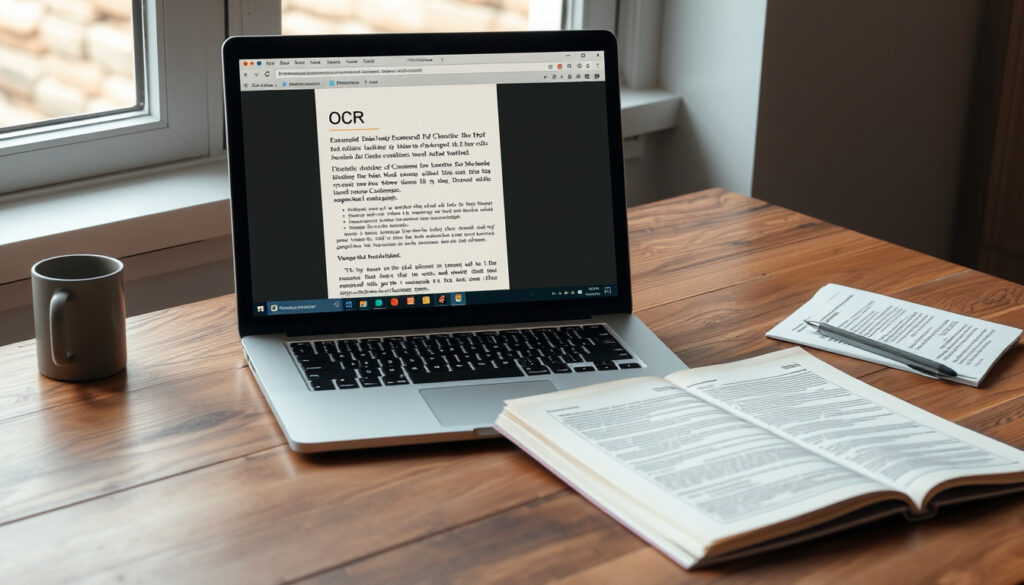
Image to Text Converter: Free Online OCR Tools in 2025
Stop squinting at a photo when you need the text out of it: an image to text converter turns scanned documents, screenshots, and even handwritten notes into copy-paste text in seconds. With 50+ free and paid OCR tools on the market in 2025, the right pick comes down to accuracy, limits, and whether your pages are clean or messy.
Online OCR tools available: over 50 ·
Accuracy for printed text: 95-99% ·
Supported formats: JPG, PNG, GIF, BMP, PDF, TIFF ·
Languages supported by top tools: 100+ ·
Free tools with no sign-up: most common
Quick snapshot
- OCR accuracy improves significantly when scans are made at around 300 DPI (University of Illinois Library)
- Brightness that is too high or too low reduces OCR accuracy (University of Illinois Library) (University of Illinois Library)
- Exact accuracy numbers per tool vary by image quality and layout (ImageToTextOCR)
- No single tool is best for every input type — handwriting and low-resolution results vary (ImageToTextOCR) (ImageToTextOCR)
- First OCR patent filed in 1914 by Emanuel Goldberg — the tech is over a century old (Wikipedia — OCR overview)
- AI-based OCR tools now claim better handwriting recognition than traditional engines (Transkribus)
- Expect free tiers to stay limited on batch processing and advanced export features (Wondershare PDFelement)
- Paid AI tools will continue improving for handwritten and historical documents (Transkribus) (Wondershare PDFelement)
The numbers below anchor the rest of the guide.
| Label | Value |
|---|---|
| First OCR patent | 1914 (Emanuel Goldberg) |
| Global OCR market size (2023) | $13 billion |
| Number of free online OCR tools | 50+ |
| Average processing time per image | 2-5 seconds |
What is an image to text converter?
An image to text converter uses Optical Character Recognition (OCR) to extract readable text from images, scanned documents, and screenshots. It’s the technology that lets you take a photo of a receipt and get a plain-text version you can edit, search, or paste into another app.
How does OCR technology work?
- OCR analyzes the shapes and patterns of characters in an image to recognize them as letters and numbers
- It matches those patterns against known character models for the languages you select
- The output is plain text that you can copy, edit, search, and save
Think of it as translation, but between pictures and text. The engine doesn’t “read” like a human — it detects geometric patterns and converts them into machine-readable characters. That’s why image quality, font clarity, and resolution matter so much.
The core idea is simple, but modern OCR tools are anything but. The best ones combine traditional character recognition with AI models that learn context, which is why they handle messy scans better than free tools from a decade ago.
What types of images can be converted?
- Scanned documents (PDFs, TIFF files, and multi-page scans)
- Photos taken with your phone camera
- Screenshots from websites, PDFs, or apps
- Handwritten notes (with varying accuracy depending on the tool)
The practical takeaway: most tools support JPG, PNG, GIF, BMP, PDF, and TIFF formats. Check the supported formats before uploading a file, because some free tools reject certain image types or multi-page PDFs entirely.
The pattern: OCR works best when the input looks like a clean, flat document. The more your image resembles a high-quality scan, the better your results will be — regardless of which converter you use.
Is there a free image to text converter?
Yes — and you don’t need to look far. Many free online tools let you upload an image and extract text within seconds without creating an account. Google Drive itself offers free OCR for any PDF or image you store there, which is a solid fallback if you already use Google services.
What are the limitations of free converters?
- Daily usage caps or file size limits (often around 5 MB per image)
- No batch conversion — you process one image at a time (Wondershare PDFelement)
- Limited export options (no Word formatting, no searchable PDF output)
- Less accurate on handwriting and complex layouts (ImageToTextOCR)
If you’re processing one clean document, a free tool will likely do the job. If you’re a student working through 40 scanned pages, you’ll hit the wall quickly.
| Tool | Price | Key Limits | Best For |
|---|---|---|---|
| Google Drive OCR | Free (with Google account) | Supports multiple scripts; requires upload to Drive | Basic PDFs and images (FastOCR) |
| Google Lens | Free (with Google account) | Described as unlimited in one comparison | Quick photo-to-text on mobile (FastOCR) |
| OnlineOCR.net | Free tier | No batch conversion support | Single-file jobs (Wondershare PDFelement) |
| Adobe Acrobat Online | Free tier | 2 files per month | PDF-heavy workflows (FastOCR) |
Which free tool is the most accurate?
For clean printed text, there’s no single winner — most free tools hover in the 95-99% accuracy range. But when you push them with handwriting or low-resolution photos, the gap widens. A comparison by ImageToTextOCR notes that some tools are better for handwritten or low-resolution images, which suggests you should match the tool to your input type rather than chase a universal champion.
Free tiers are generous enough for occasional use, but the moment your workflow involves more than a few pages, the “free” option starts costing you time. Batch processing is the first feature to disappear from free plans.
Which is the best online image to text converter?
No single tool wins every category. The “best” converter depends on what you’re feeding it: clean PDFs, phone photos of whiteboards, or historical manuscripts. Here’s how to judge the options on the metrics that actually matter.
How to compare accuracy between tools?
- Test with the same image across multiple tools — accuracy claims are meaningless without a controlled test
- Check reviews on app stores and forums for real-world performance on handwriting
- Verify whether the tool preserves formatting (bold, italics, table structure) or just outputs plain text
Accuracy also depends on the document mix. A practical OCR guide recommends choosing the right engine for the document type because forms, invoices, identity documents, and screenshots behave very differently (pdf.ai). A tool that nails screenshots might stumble on a scanned receipt with a logo in the corner.
What features to look for in an online converter?
- Language support — especially if you work with multilingual documents or right-to-left scripts
- Output formats (plain text, Word, searchable PDF)
- Batch processing for multiple files at once
- Privacy policy — does the server store your uploaded images?
- Offline capabilities if you’re handling sensitive documents
Before you compare prices, lay the features side by side.
| Feature | Free Tools | Paid Tools |
|---|---|---|
| Batch conversion | Rarely available | Commonly included |
| Handwriting recognition | Limited (60-80% accuracy) | AI-enhanced, better results |
| Formatting retention | Basic plain text | Word and PDF output with formatting |
| Cloud storage integration | Sometimes (Google Drive) | Usually (Dropbox, Google Drive, OneDrive) |
| Privacy guarantees | Varies — often no clear policy | Stronger guarantees with paid plans |
Paid tools cost anywhere from $5.99 per month (HiPDF) to $79.99 for a desktop license (PDFelement) (Wondershare PDFelement). Before you pay, ask whether the batch feature alone justifies the price.
How to convert an image to text in Word?
Here’s the honest answer: Microsoft Word does not have a direct OCR feature. You can’t open a scanned PDF in Word and get editable text out of it without an extra step. But there are two practical workarounds that take less than a minute.
Using Microsoft Word’s built-in options
- Insert the image into Word first (Insert > Picture), but this only adds the image — it doesn’t extract text
- Open a PDF in Word — Word can sometimes recognize text from a text-based PDF, but not from scanned images
- Use the “Reuse Files” feature to pull text from other documents, but this doesn’t solve the OCR problem
The workaround is to convert the image to text first using an online tool, then paste the text into Word. It’s not elegant, but it works reliably.
Alternative: copy-paste from an online converter
- Step 1: Upload your image to a free online converter like imagetotext.info or imagetotext.io
- Step 2: Let the OCR engine process the image (usually 2-5 seconds)
- Step 3: Copy the output text and paste it into Word
- Step 4: Use Word’s formatting tools to clean up the text
Third-party Word add-ins for OCR exist, but they’re not free and often feel clunky compared to a browser-based tool. Stick with the copy-paste method unless you’re processing thousands of documents a month.
The practical upshot: don’t hunt for OCR inside Word; do the conversion first, then paste.
How accurate are image to text converters?
Accuracy is the question everyone asks, and the answer is more nuanced than a single percentage. According to research notes from University of Illinois Library, high-quality scans at 300 DPI produce the best OCR results, while brightness extremes hurt recognition. A general benchmark for clean printed text is 95-99% accuracy, but handwriting accuracy drops to 60-80% for free tools.
Factors affecting accuracy
- Resolution: scans at 300 DPI are the sweet spot (University of Illinois Library)
- Brightness and contrast: too high or too low reduces accuracy (University of Illinois Library)
- Blur and tilt: avoid camera shake and skew (pdf2text.app)
- Layout complexity: tables, columns, and logos confuse standard OCR engines
- Language and script: some tools handle multilingual and right-to-left scripts better than others (FastOCR)
Here’s how input types usually break down across free and AI-powered tools.
| Input Type | Free Tools Accuracy | AI-Powered Tools |
|---|---|---|
| Clean printed text (300 DPI) | 95-99% | 98-99% |
| Phone photos of documents | 85-95% | 95%+ |
| Handwritten notes | 60-80% | 85-90% (with AI) |
| Historical documents | Very low | Improved via specialized engines |
How to get the most accurate results
- Scan at 300 DPI — anything lower loses character detail, anything higher doesn’t help much
- Crop unnecessary areas and keep the original resolution (pdf2text.app)
- Process one page at a time instead of feeding a 50-page PDF to a free tool (pdf2text.app)
- Fix brightness and contrast before uploading — a balanced image is half the battle
- Choose the right engine for your document type (pdf.ai)
The pattern: OCR accuracy follows the garbage-in-garbage-out rule. If you feed a converter a blurry, low-resolution photo, the best AI on earth will still produce errors. The cheapest way to improve accuracy isn’t a paid tool — it’s better image capture.
What’s confirmed vs. what’s unclear about image to text converters?
Confirmed facts
- OCR accuracy for printed text is high when image quality is good — up to 99% in ideal conditions (University of Illinois Library)
- Free tools have usage limits — either file size caps, page limits, or no batch processing (Wondershare PDFelement)
- AI-based converters improve handwriting recognition compared to traditional OCR engines (ImageToTextOCR)
- Scanning at 300 DPI improves accuracy (University of Illinois Library)
- Google Drive and Google Lens both offer free OCR with a Google account (FastOCR)
What’s unclear
- Exact accuracy numbers for each tool vary by image and layout — no single source has tested all converters side-by-side
- Long-term reliability of free services isn’t guaranteed — free tools can disappear or add limits without notice
- Whether premium pricing improves real-world accuracy on typical documents — some paid tools offer marginal gains on clean text
- The privacy practices of many free OCR websites are not transparent about data retention
- No single converter wins every accuracy test on low-resolution or mixed documents (ImageToTextOCR)
What this means: The fundamentals of OCR are well documented, but the “which tool is best” question will always be a moving target. Let your own test documents, not marketing claims, make the final call.
Quotes and expert context
Optical character recognition (OCR) is the conversion of images of text into machine-encoded text. The first OCR patent was filed in 1914 by Emanuel Goldberg, and the technology has evolved from mechanical pattern matching to AI-driven recognition systems.
Wikipedia (OCR overview)
AI-based OCR solutions have significantly improved recognition for historical documents, producing higher accuracy rates than traditional OCR engines when handling old scripts and degraded paper quality.
Transkribus (historical document OCR)
The pattern across both sources is consistent: traditional OCR handles clean scans well, while AI-driven tools extend that reliability to degraded and handwritten material.
How to choose the right image to text converter for your needs
The right tool depends on a simple question: what are you converting, and how often? Here’s a step-by-step approach for picking the converter that fits your workflow.
-
Step 1: Define your input type
- Clean printed documents → any tool will do, free or paid
- Phone photos / screenshots → tools with mobile apps or camera capture
- Handwritten notes → AI-based converters like Transkribus or specialized handwriting tools
- Scanned books or historical documents → specialized engines with layout analysis
-
Step 2: Check your volume
- 1-5 pages per week → free tier is fine
- 10+ pages per day → batch processing is a must; consider paid tools
- Occasional multi-page PDFs → check whether the tool supports multi-page OCR
-
Step 3: Verify language support
If you process documents in multiple languages, the right-to-left script support and multilingual coverage from FastOCR can matter more than raw accuracy. Some tools handle 100+ languages; others are fine with English only.
-
Step 4: Test accuracy with your own files
Run the same image through three different tools and compare outputs. That’s the only benchmark that matters for your specific use case. Check how each handles formatting (bold, italics, tables) and whether the output needs heavy cleanup.
-
Step 5: Review privacy before uploading
If your images contain sensitive data — contracts, IDs, medical records — consider an offline converter or a paid tool with clear privacy guarantees. A free tool’s privacy policy may not protect your documents after upload.
What to watchThe free tier of a tool like Google Drive supports multiple scripts and is genuinely free, but it requires uploading your files to Google’s servers. For personal use, that’s probably fine. For confidential documents, think twice about where your data lands.
The takeaway: You don’t need the most expensive tool — you need the right one for your document mix and volume. A free online converter handles 80% of use cases; the remaining 20% (handwriting, complex layouts, batch jobs) is where paid tools earn their price tag.
Summary: The future of image to text conversion
OCR technology has clearly crossed a threshold. The 95-99% accuracy rates of modern tools mean that converting a clean scan to editable text is no longer a technical challenge — it’s a solved problem with dozens of free and paid options. The real battleground is handwriting, historical documents, and complex layouts where AI-powered tools are pulling ahead. For students, researchers, and professionals who work with diverse documents, the choice between free and paid isn’t about accuracy anymore — it’s about workflow efficiency, privacy, and whether you need batch processing to save your afternoons. For anyone processing more than a few documents a week, the decision is clear: start with a free tool to establish your baseline, then invest in a paid converter if your volume and document complexity demand it — but verify the accuracy gain on your own files first.
thimpress.com, medium.com, makoletdigimarket.com, transkribus.org, wps.com, image2text.tech
For a detailed comparison of the best free online OCR tools, check out this best free online OCR tools guide that tests accuracy and features across multiple platforms.
Frequently asked questions
Can I convert a scanned PDF to text?
Yes. Most online OCR tools accept PDF files and extract text from them. Some free tools are limited to single-page PDFs, while paid tools handle multi-page documents. For best results, ensure the PDF was scanned at around 300 DPI — the same rule that applies to image OCR.
Do I need to create an account to use a free image to text converter?
No, most free online tools let you upload an image and extract text without signing up (e.g., imagetotext.info, imagetotext.io). Some tools like Google Drive and Google Lens do require a Google account, as noted in a comparison by FastOCR. If you’re privacy-conscious, skip sign-up tools and use a simple upload-based converter.
What is the best image to text converter for multiple languages?
Tools that support 100+ languages are your best bet. Google Drive OCR supports multiple scripts and is free with a Google account, according to FastOCR’s comparison. For right-to-left scripts or less common languages, test the tool with a sample document — multilingual support claims can be exaggerated.
How to convert handwriting to text on a phone?
Google Lens is the easiest free option — it captures text from a photo and converts it using OCR. For better handwriting recognition, AI-powered tools like Transkribus specialize in handwritten documents, though they may have a learning curve. Expect lower accuracy on handwriting than printed text.
Are there any privacy concerns with online OCR?
Yes. When you upload an image to a free OCR website, you typically don’t know how long the server stores it or who can access it. For sensitive documents, use an offline tool or a paid service with clear privacy policies. The university library guides on OCR recommend treating online uploads like any other web upload — assume the server retains a copy unless proven otherwise.
Can I use an image to text converter offline?
Yes, but with trade-offs. Some mobile apps offer offline OCR for basic text extraction, and desktop software like Adobe Acrobat and PDFelement include offline OCR features. Free offline tools are less common — most free options require an internet connection. If offline is a hard requirement, try a mobile app with offline mode or a paid desktop license.
What is the difference between OCR and image to text converter?
OCR (Optical Character Recognition) is the underlying technology that recognizes text in images, while an image to text converter is the tool that packages that technology into a user-friendly interface. You could say OCR is the engine and the converter is the car. They’re used interchangeably by most people, though technically OCR refers to the algorithm and converter refers to the application.
Related reading: Check Laptop Battery Health: Windows, Dell & HP Guide · How to Fix Slow Startup Windows: 10 Proven Methods
More related posts
 Cheap Flights to London – Best Tools and Tips for 2025
 Pets in the City Mt Wellington – Dog Daycare and Boarding Guide
 Business Class Air NZ: Reviews, Prices & Inclusions
 Accounting Software for Small Business: Full Comparison
 Toyota Second Hand Cars in Ireland – Buyer’s Guide
 Swimming Pool Near Me: Find Pools in Dublin & Cork
 Gifts for Men NZ: How to Pick a Present He’ll Love
 The Green Frog Masterton Menu – Prices, Items and 2025 Updates